Overlay Pop-Up Menu
A pop-up menu is available to export, copy, and align overlays.
| Description | |
|---|---|
|
Export as Multiple ORSObject* |
Exports the selected overlays in separate files in the ORSObject file format (*.ORSObject extension) to a selected folder (see Exporting Objects). |
| Export as ORSObject | Lets you save the selected overlay(s) in the ORSObject file format (*.ORSObject extension). See Exporting Objects. |
| Execute Macro |
Provides a shortcut for selecting macros that can be executed for the selected overlay(s). See Recording and Playing Macros. |
|
Copy |
Copies the selected overlay. Copied overlays will appear as new items in the Data Properties and Settings panel. |
|
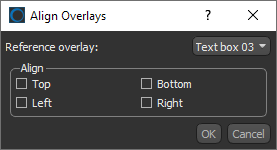
Align |
Lets you align overlays to a selected reference in the Align Overlays dialog.
Do the following to align selected overlays:
|
* Available for multiple selections only.

 PRODUCT INFORMATION
